
How to withdraw money from Revolut
Financial basics · 6 May 2026Dimitri de Perthuis
Whether you need to transfer funds to a local bank account, send money to a friend, or grab physical cash for a trip abroad, accessing your Revolut balance is straightforward.
In this guide, we'll walk you through exactly how to withdraw cash, or transfer money from your account quickly and securely. Learn how to make local and international transfers in a few taps, find surcharge-free ATMs with our in-app locator, and discover everything you need to know about transfer times, withdrawal limits, and avoiding unexpected fees.
3 ways to withdraw from your Revolut balance
There are several ways to access the money you hold in your Revolut account. You can:
- move it to another bank account
- withdraw physical cash from an ATM
- spend it directly with your Revolut card
Now that you know your options, we'll explain in more detail how to use each withdrawal method.
How to move money to other bank accounts: a step-by-step guide
You can initiate a transfer to another bank account you hold, or to a friend’s account, in just a few taps, directly from your home screen.
To send money to a bank account:
- Open your app and tap Payments on the bottom menu
- Tap the plus (+) symbol in the top-right corner → Bank recipient
- Enter the required account details (name, sort code, and account number)
- Choose the currency, enter the amount you wish to withdraw, and tap Send
Currency exchange and remittance fees may apply.
Once you’ve saved account details once, you can send money to that account easily in a few taps.
If you don't have the bank details on hand, you can also create a payment link. This lets the other person enter their own information securely so you don't have to worry about typos.

How to link your bank account
You can link your external bank accounts to make transfers even easier. We support connections with most major banks and building societies in the UK.
Once you've linked your bank account, you'll be able to see your external balances alongside your balance with us. This gives you a clear view of all your finances in one place, without needing to switch between different apps. You can also move money back and forth between your accounts seamlessly.
Here's how to set it up:
- Go to Home on the bottom menu → Accounts (below your balance)
- Tap Add new → Linked
- Choose your bank and follow the prompts to authorise the connection
What details do you need for a bank transfer?
To ensure a smooth withdrawal, you'll need specific details depending on where you're sending the money. Accuracy is vital, as incorrect details can cause delays or lead to the money being sent to the wrong place.
Transfer destination | Details required | What you need to know |
UK account | Full name, 6-digit sort code, and 8-digit account number | We use Confirmation of Payee to verify the name matches the bank's records |
International account | Full name, IBAN, and BIC or SWIFT code | Double-check these details with your recipient before you finalise the transfer |
How long does it take to transfer money to a bank account?
Local UK transfers sent in GBP usually arrive within seconds, while international SWIFT transfers usually take up to 2 business days. The time it takes to move money to another account depends on the specific payment system used by the receiving bank and the destination country.
We use several different payment systems to ensure your money moves as fast as possible:
Transfer type | Estimated arrival time | Common scenario |
Faster Payments (FPS) | Usually a few hours, but up to 1 business day | Daily local transfers |
SEPA | SEPA Instant transfers should arrive within a few minutes. Regular SEPA transfers can take up to 2 business days | EUR transfers within supported European banks |
CHAPS | Up to 1 business days | High-value payments like property deposits |
BACS | 2 to 3 business days | Salary payments |
SWIFT | Usually within 3–5 business days | Global transfers outside local networks |
What are the fees for bank transfers?
When you send local bank transfers in GBP within the UK or EUR within the SEPA region, we won’t charge you transfer fees. We'll provide a clear, upfront fee breakdown for every transaction before you confirm it, so there're no surprises.
For international transfers outside these regions, fees are variable and depend on your plan and the destination currency. If you're on one of our paid plans, you'll benefit from significant discounts on international transfer fees:
- Standard and Plus: standard fees apply (calculated in-app)
- Premium: 20% discount on international transfer fees
- Metal: 40% discount on international transfer fees
- Ultra: 100% discount (all international transfers are included)
Currency exchanges use competitive rates. Additional fees apply if you exceed monthly limits or exchange over the weekend (Friday 5pm to Sunday 6pm ET):
- Standard: 1% fee over €1,000 and for weekend exchanges.
- Plus: 0.5% fee over €3,000 and for weekend exchanges.
Exchange fees, international transfer fees, fair usage limits, and T&Cs apply. Paid plan terms apply.
How do you withdraw cash at an ATM?
You can withdraw physical cash by inserting your physical debit card into any supported ATM and entering your 4-digit PIN. We'll offer a set no-fee allowance for cash withdrawals every rolling month, which varies based on the plan you've chosen.
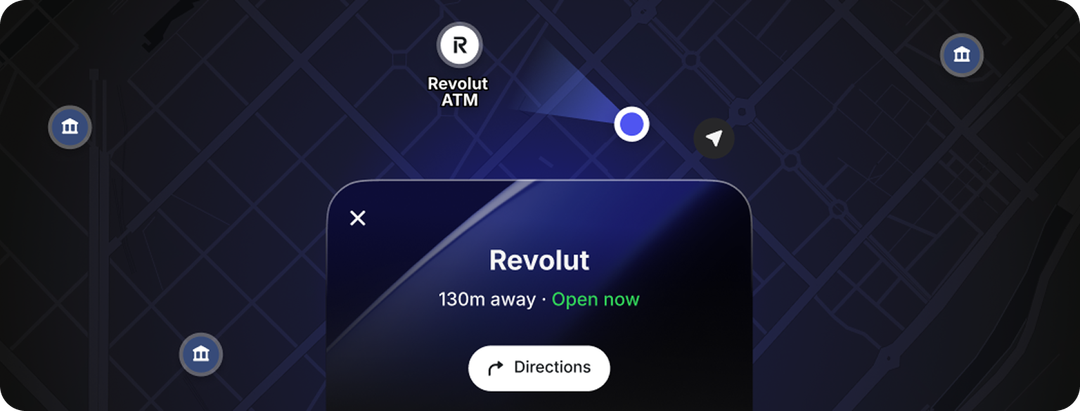
It's important to remember that the ATM operator might charge their own separate fee. We've included a map in the app to help you find surcharge-free ATMs in your area. If you've exceeded your plan’s no-fee allowance, a 2% fair usage fee (subject to a minimum of £1) applies to each withdrawal.
Plan | Monthly no-fee ATM allowance |
Standard | £200 or 5 withdrawals (whichever is first) |
Plus | £200 |
Premium | £400 |
Metal | £800 |
Ultra | £2,000 |
Your debit card
When you order a physical card, you'll be able to spend your balance directly at millions of locations around the world. Virtual cards are perfect for online shopping.
We also offer single-use virtual cards that refresh after every purchase, adding an extra layer of security when you're spending online with a new seller or website. Every time you spend, you'll also get an instant notification on your phone so you can track your budget in real-time.
You can have up to 6 physical cards and 20 virtual cards. Only 4 new virtual cards (including single-use virtual cards) can be created per month. Single-use virtual cards have a limit of 5 payments every 24 hours and only one can be active at any one time.
Fees may apply for additional physical cards.
Start managing your money today
You can open your account in just a few steps — all from your phone.
- Download the app: get the Revolut app from the App Store or Google Play, or enter your mobile number to receive a link to the app
- Verify your mobile number: you’ll receive a 6-digit code by SMS to verify
- Secure your account: set a secure 4-digit passcode
- Fill in your details: enter your name, date of birth, address, email, and country of residence. You’ll also set up your @revtag to send and receive payments easily, using a QR code or just the tag.
- Verify your identity: take a clear photo of your ID (passport or driving licence) and take a quick selfie in-app to confirm it’s you
Once verified, your account is ready for you to use.