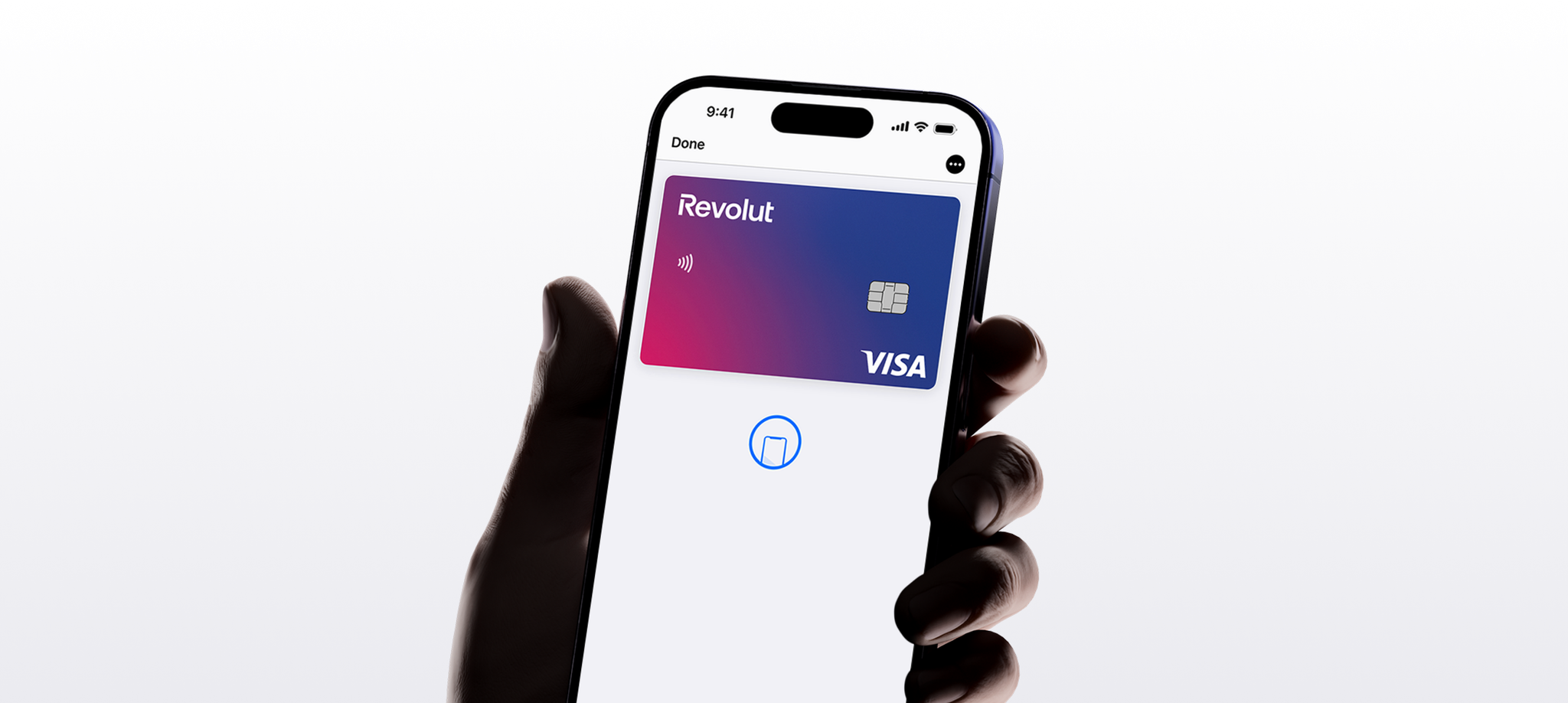
How to add your card to Apple Pay
Financial basics · 28 November 2025Clément Bolmont
Contactless payments have transformed the way we spend money. That process of digging out a physical wallet and entering a PIN has been replaced by a simple tap of your phone or watch. In the UK, digital wallets are now the easiest way to pay for everything from a morning coffee to the weekly food shop, and Apple Pay is one of the most popular options.
Knowing how to add a card to Apple Pay is the first step towards ditching your physical wallet for good. It's a straightforward process that grants you instant, secure access to your money. Whether you're using a new debit card or trying to figure out how to add a credit card to Apple Pay, this guide walks you through every step.
The information provided is accurate as of 20 November 2025.
18+, T&Cs apply.
What's Apple Pay and why should I use it?
Apple Pay is a mobile payment and digital wallet service that allows you to make secure payments using a compatible Apple device, such as an iPhone, Apple Watch, iPad, or Mac. It securely digitises your card details, enabling contactless transactions in stores, in apps, and when shopping online.
The main benefit of Apple Pay is convenience. Once your card's added to the Wallet app, you no longer need to carry the physical one to make purchases. This is handy if you like to travel light, knowing your money's always accessible digitally.
Apple Pay also offers security. When you add a card, the actual 16-digit card number is never stored on the device itself or on Apple's servers. Instead, a unique encrypted token is created. Every transaction is authenticated with a one-time dynamic security code, meaning your payment information is safe.
At Revolut, we take security seriously, and this digital layer adds protection against card skimming or theft.
Apple Pay compatibility
Before you begin the process of adding a card, it is important to check that your devices and region meet requirements. While Revolut cards are fully compatible with Apple Pay for UK customers, a few basic checks can help you avoid set-up issues:
- Compatible devices: the device needs to be a recent model. This includes an iPhone (6 or later), an Apple Watch (Series 1 or later), an iPad (Pro, Air, or mini models with biometric security), a Mac with Touch ID, or a Mac paired with an Apple Watch or iPhone.
- Software version: your device must be using the latest version of iOS, iPadOS, or watchOS. Outdated software can stop you from being able to add your card.
- Security settings: your device must have a secure authentication method enabled. You need either Face ID, Touch ID, Optic ID (for Vision Pro), or a passcode set up on the device you're using. If you sign out of iCloud or remove your passcode, all digital cards are instantly removed from that device for security reasons.
- Region: the service is supported globally, but making sure your Apple ID region setting is correct (e.g. United Kingdom) helps guarantee seamless connectivity with UK card issuers.

The fastest ways to add a card to Apple Pay
You can add a Revolut debit card to your Apple Wallet in 2 ways. Both are simple, but using the Revolut app is often the fastest way if you're already signed up with us.
Option 1: add your card to Apple Wallet with the Revolut app
If you're ready to start right now, here's the fastest way to add your card to your Apple Wallet:
- Via the Revolut app: open Revolut → Cards → choose your card → tap Add to Apple Wallet
- Via the Wallet app: open the Apple Wallet app → tap + → choose Debit or Credit Card → scan or manually enter your card details
- Complete verification (usually via a code sent to your phone)
Option 2: manually add your card to Apple Pay
Follow these steps to add any eligible debit or credit card to your Apple Wallet:
- Open the Wallet app
- Tap the + icon in the top right corner
- Choose Debit or Credit Card → tap Continue
- Scan your card or tap Enter Card Details Manually
- Enter the security code (CVV) from the back of your card
- Accept the T&Cs
- Verify your card with a code sent via SMS or a push notification in the Revolut app
Device-specific setup guides
How you pair your device with your Wallet depends on the device you're using.
How to set up Apple Pay on Apple Watch
If you want the convenience of paying with your wrist, you'll need to use the Watch app on your paired iPhone. Here's how:
- Open the Watch app on your iPhone
- Tap My Watch
- Scroll down and tap Wallet & Apple Pay
- Tap Add to Wallet
- Select the Revolut card from previous cards, or choose Debit or Credit Card to enter new details
- Enter the security code (CVV) for the card
- Accept the terms and complete the verification process
Adding cards for payments on Mac and iPad
Your phone and watch handle most contactless payments, but you can also use Apple Pay on other devices for secure online checkouts. Here's how to get started:
- On an iPad: go to Settings → Wallet & Apple Pay → Add Card, then follow the on-screen steps.
- On a Mac: go to System Settings (or System Preferences) → Wallet & Apple Pay → Add Card. On Macs without built-in Touch ID, you can approve purchases using your paired Apple Watch or iPhone.
Physical vs virtual cards: which to use in your digital wallet
Revolut offers both physical cards and virtual cards for your spending needs. Both can be seamlessly added to Apple Pay, but they have different features, particularly regarding security and control.
Your physical card is the traditional one. When added to Apple Pay, the physical card number is digitised, so it's digitally secured but ultimately linked to the same number.
A virtual card is a digital-only one. You can create or freeze these cards instantly. When you add a virtual card to Apple Pay, it brings an extra layer of security, especially for online shopping. This is because its details are completely separate from your physical card details. If the virtual card number is compromised online, you can immediately delete it and create a new one without changing your physical card. Virtual cards are a great tool for smart, secure spending.

Understanding security: the tokenisation layer
Tokenisation is at the root of Apple Pay security. This process makes sure that your real card numbers are never shown to merchants. This makes it much safer than traditional card swipes.
When you add a Revolut card:
- The actual 16-digit card number is replaced with a unique Device Account Number (DAN)
- This DAN is a secure token, encrypted and stored only in the Secure Element chip on your device
- When you pay, the DAN and a transaction-specific dynamic security code are sent to the terminal
- The merchant only receives the token (DAN), not your actual card number, protecting your sensitive data from being stolen when you make a payment
This level of protection is why using a digital wallet is one of the safest ways to pay.
Why can’t I add my card to Apple Wallet?
Here are the most common reasons and fixes for being unable to add your card to Apple Wallet:
Issue | Quick fix |
Outdated software | Check your iOS, iPadOS, or watchOS is running the latest version |
Card is frozen/inactive | Check the Cards section of the Revolut app to make sure the physical or virtual card is active and not frozen |
Incorrect details | If you're entering details manually, double-check the card number, expiry date, and 3-digit security code (CVV) for typos |
Verification failed | Check your SMS or Revolut notifications for a verification code and enter it quickly — if it fails, remove the card and try again |
Device security disabled | Make sure you have a passcode, Face ID, or Touch ID set up on the device you're using |
Card limit reached | The Wallet app has a limit on the number of cards you can store (usually 12 on newer iPhones) — you might need to remove an old card first |
Managing your cards in Apple Pay
Once you've added your cards, you've got full control to customise your setup. That means choosing your preferred card for quick payments or removing an old card.
How to set your default card on Apple Pay
If you have multiple cards in your Apple Wallet, you need to assign one as your main payment method. This is the card that appears automatically when you double-tap the side button on your iPhone or Apple Watch to make a payment.
- Open the Settings app on your iPhone
- Scroll down and tap Wallet & Apple Pay
- Tap Default Card
- Select the Revolut card you want to set as your main payment method
Alternatively, you can open the Wallet app and drag your preferred card to the front of the stack.
How to update or remove an existing card on Apple Pay
Sometimes your card details change, or you need to clear out an old card. Knowing how to update cards in Apple Pay allows you to keep making payments without interruption.
If you get a replacement card from Revolut (e.g. because your old one's expired), our app will usually automatically update the digitised card number in your Apple Wallet. You'll receive a notification to confirm the change.
If a card is lost, expired, or you just don't want to use it with Apple Pay anymore, the removal process is straightforward:
- Open the Wallet app.
- Tap the card you want to remove.
- Tap the ... symbol in the top-right, then Card Details.
- Scroll down and tap Remove Card. You'll be asked to confirm the deletion.

Apple Pay FAQ
Can I use Apple Pay without an internet connection?
Yes. Once your card is added to your Apple Wallet, you don't need to be connected to WiFi or mobile data to make a contactless payment.
How do I know if an Apple Pay payment went through successfully?
You'll see a Done and a checkmark on your screen, and you'll feel a slight vibration. You'll also get an instant push notification from our app confirming the transaction.
Can I use Apple Pay abroad with my Revolut card?
Absolutely. If the business accepts contactless payments, you can use Apple Pay. Because you're using a Revolut card, you benefit from our currency exchange features while spending in the local currency, with the added security of being able to leave your physical card safely at the hotel.
Exchange fees, fair usage limits, and T&Cs apply.
Is there a limit on how much I can spend with Apple Pay in the UK?
No. Unlike physical contactless payments with a physical card, which often have a £100 limit in the UK, payments made via Apple Pay are authenticated by Face ID, Touch ID, or your device's passcode. This authentication allows you to make payments over the typical contactless limit, provided the terminal supports it.
Ready to start spending with Apple Pay?
By using Revolut, you can manage your physical cards and virtual cards all in one place, giving you complete control over your contactless spending. Getting set up only takes a few taps:
- Download the Revolut app and complete the sign-up process in a matter of minutes
- Order a physical card (delivery fees apply) or create a virtual one in-app in the Cards section
- Tap Add to Apple Wallet under the image of your new card
- Confirm the card in your Apple Wallet and start making secure, contactless payments instantly